
Indoor Training App Setup
The HRM app works with Zwift, TrainerRoad, ROUVY, FulGaz, TrainerDay, and other indoor platforms. One important rule applies to all of them.
One iPhone, One App
The HRM app must run on your iPhone. The training app must run on a separate device: iPad, Apple TV, Android, or computer. Both cannot run on the same iPhone simultaneously. This is a Bluetooth limitation, not a bug.
ROUVY
iPad · Apple TV · Android · Computer
- 1 Within ROUVY, go to
Settings → Sensors → Add sensorand select the Heart Rate box. - 2 Open HRM on your iPhone and Apple Watch, then press Start on the Watch.
- 3 ROUVY discovers your iPhone as a heart rate sensor. Select it to connect.
Apple TV Limitation
Apple TV only supports 2 Bluetooth devices at once. If both slots are taken, disconnect one of your other devices to make room for HRM.
Zwift
iPad · Apple TV · Android
- 1 In Zwift, go to the pairing screen and select Heart Rate.
- 2 Open HRM on your iPhone and Apple Watch, then press Start on the Watch.
- 3 Zwift discovers the HRM App. Select it to pair.
Apple TV Limitation
Apple TV only supports 2 Bluetooth devices at once. If both slots are taken, disconnect one of your other devices to make room for HRM.
TrainerRoad
iPad · Android · Computer
- 1 In TrainerRoad, go to the Devices tab.
- 2 Open HRM on your iPhone and Apple Watch, then press Start on the Watch.
- 3 TrainerRoad discovers your iPhone as a heart rate sensor. Press Pair Device.
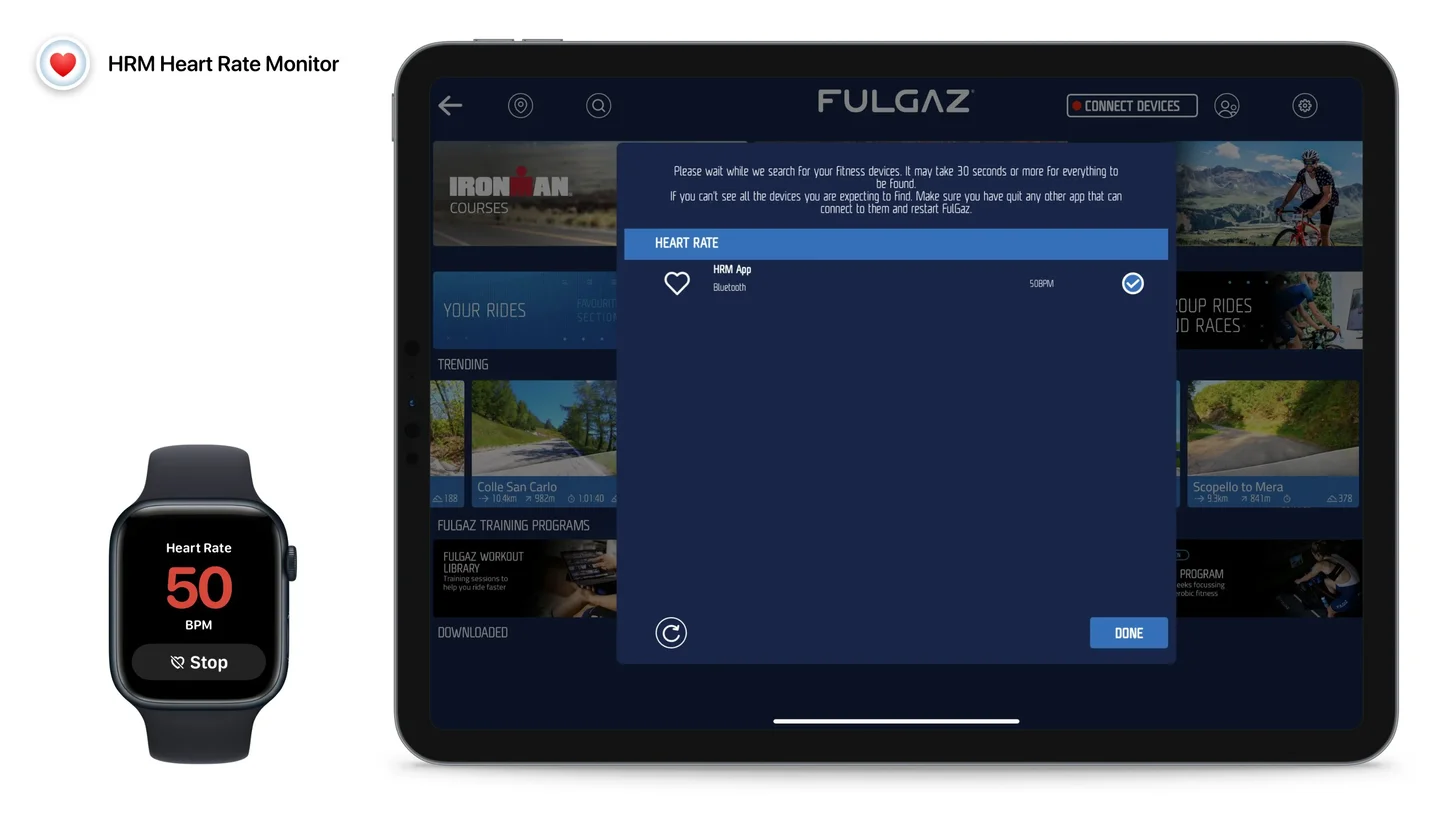
FulGaz
iPad · Apple TV · Android
- 1 On the FulGaz main screen, tap Connect Devices.
- 2 Open HRM on your iPhone and Apple Watch, then press Start on the Watch.
- 3 FulGaz discovers "HRM App" as a Bluetooth heart rate sensor. Select it.
Apple TV Limitation
Apple TV only supports 2 Bluetooth devices at once. If both slots are taken, disconnect one of your other devices to make room for HRM.
TrainerDay
iPad · Android
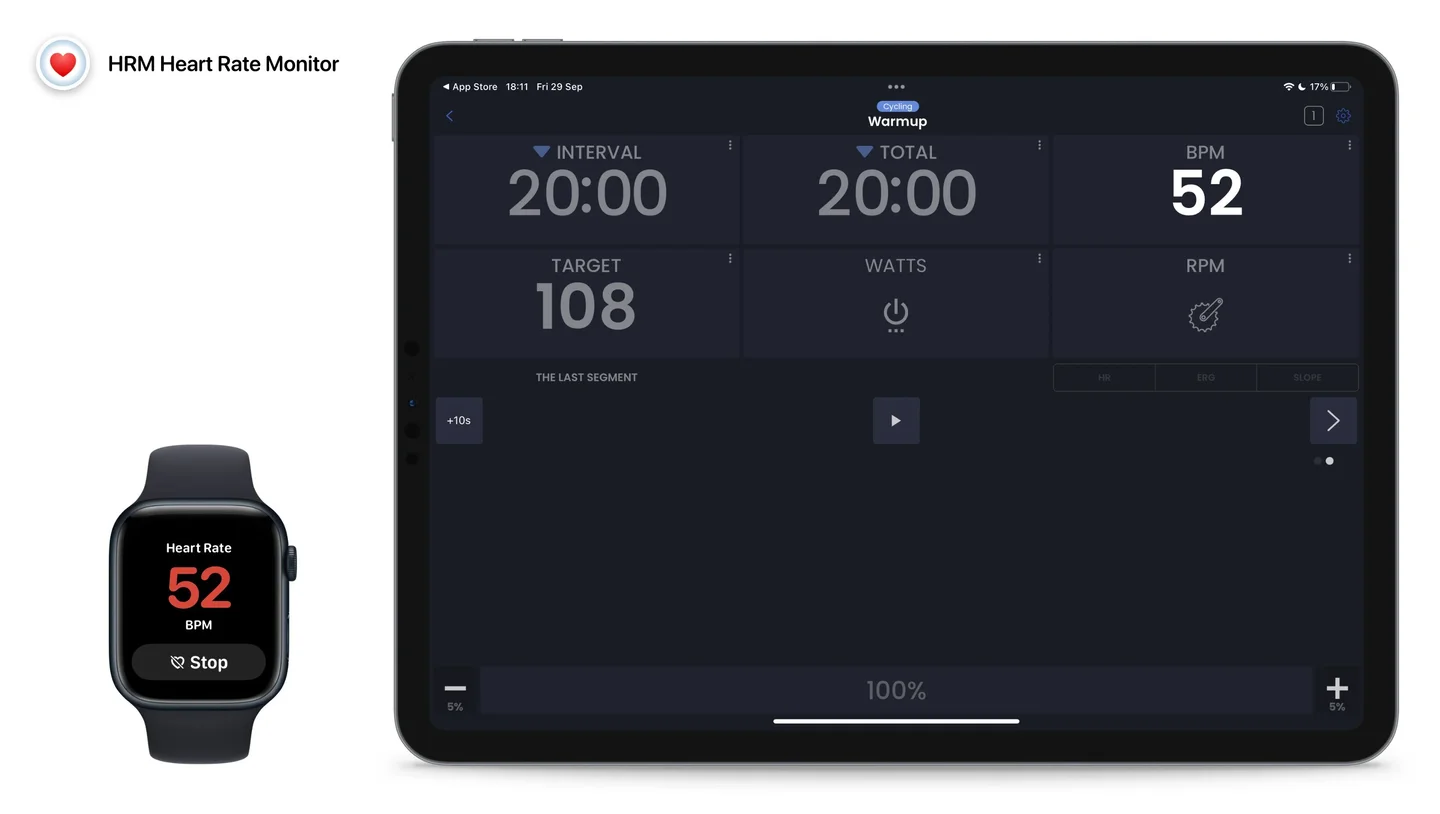
- 1 Go to
Settings → Add Devicesand press the + icon. - 2 Open HRM on your iPhone and Apple Watch, then press Start on the Watch.
- 3 TrainerDay discovers your iPhone as a heart rate sensor. It appears under Connected Devices.
HRM Shows a Pulsing Circle but No Connected Device
"No Bluetooth Device Connected" is the expected state until a receiver connects. The pulsing blue circle means the iPhone is broadcasting; the connected-device line only reports whether anything has picked that broadcast up yet, and it clears the moment your equipment connects. If it never clears, the problem is on the receiving side: pair again with HRM open and in the foreground on both iPhone and Watch.
Your Apple Watch Is Already There
No chest strap, no extra hardware. Just the Watch you're already wearing. The HRM app sends the heart rate to whatever platform you're riding on. Try it free for 7 days.
after your trial ends
Less than a 3-pack of batteries.

Cancel before the trial ends and you won't be charged.