
Garmin Edge Setup Guide
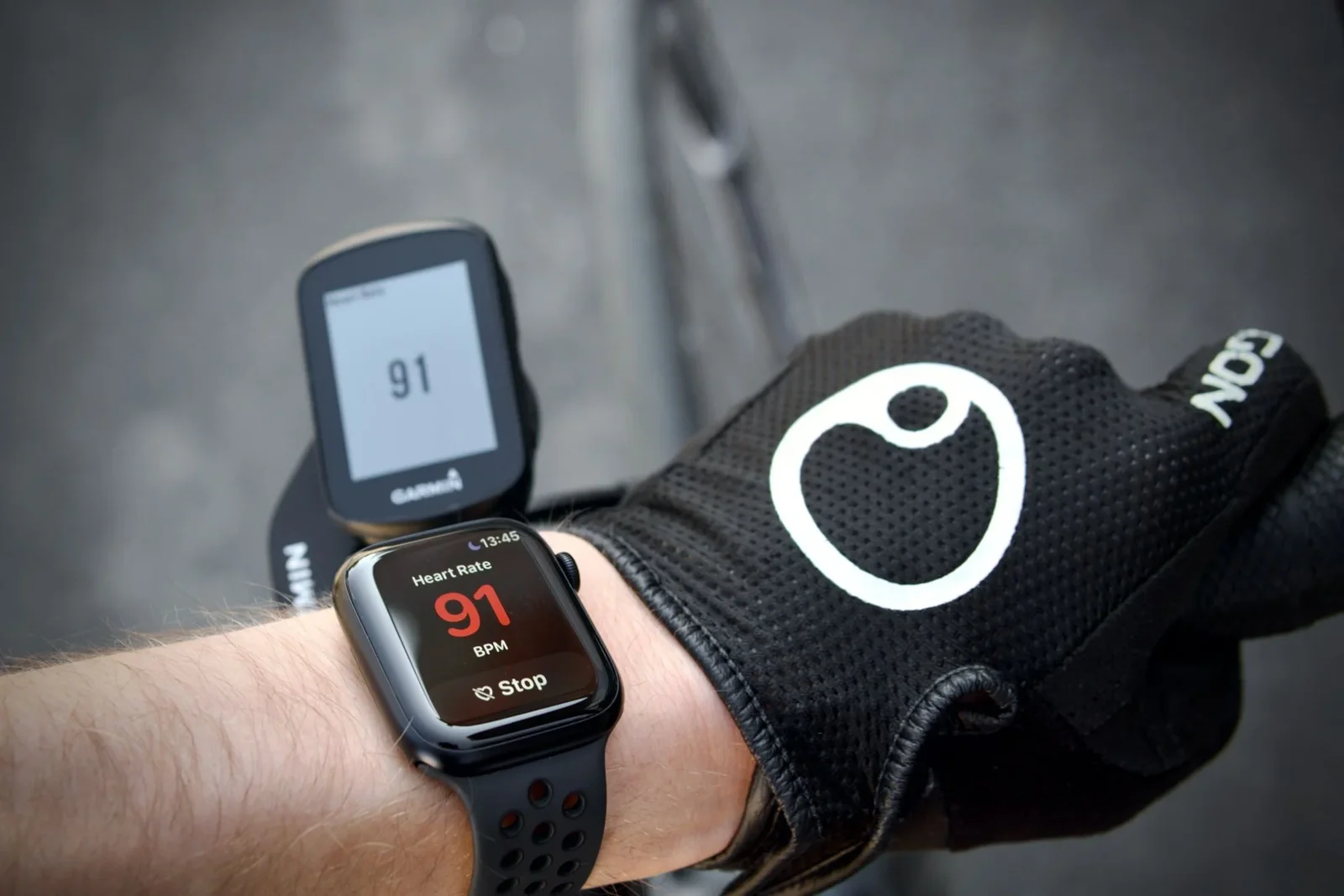
Use your Apple Watch as a heart rate monitor with your Garmin Edge. No chest strap, no extra hardware. This guide covers first-time setup, the per-ride procedure, and how to handle the phone connection limitation.
What You'll Need
- •Apple Watch (watchOS 10 or later)
- •iPhone (iOS 15 or later)
- •HRM app installed on both Apple Watch and iPhone: download here
- •A compatible Garmin Edge (see compatibility below)
Garmin Edge Compatibility
- Edge 1050
- Edge 1040 / 1040 Solar
- Edge 850
- Edge 840 / 840 Solar
- Edge 550
- Edge 540 / 540 Solar
- Edge Explore / Explore 2
- Edge 130 / 130 Plus
One Phone App at a Time
Garmin only allows one Bluetooth app connected to your iPhone simultaneously. Garmin Connect must be closed before HRM can connect. This is the most common reason it doesn't work.
- Edge 1030 / 1030 Plus / 1000
- Edge 830 / 820 / 810 / 805
- Edge 530 / 520 / 520 Plus
- Edge Touring Plus
Firmware issue — no fix available.
Initial Setup
Do this once. After pairing, your Garmin Edge remembers the HRM app as a heart rate sensor and you only need the per-ride procedure going forward.
Before You Begin
Terminate the Garmin Connect app fully on your iPhone before starting. If Garmin Connect is running in the background, it will compete for the Bluetooth connection and the pairing will fail.
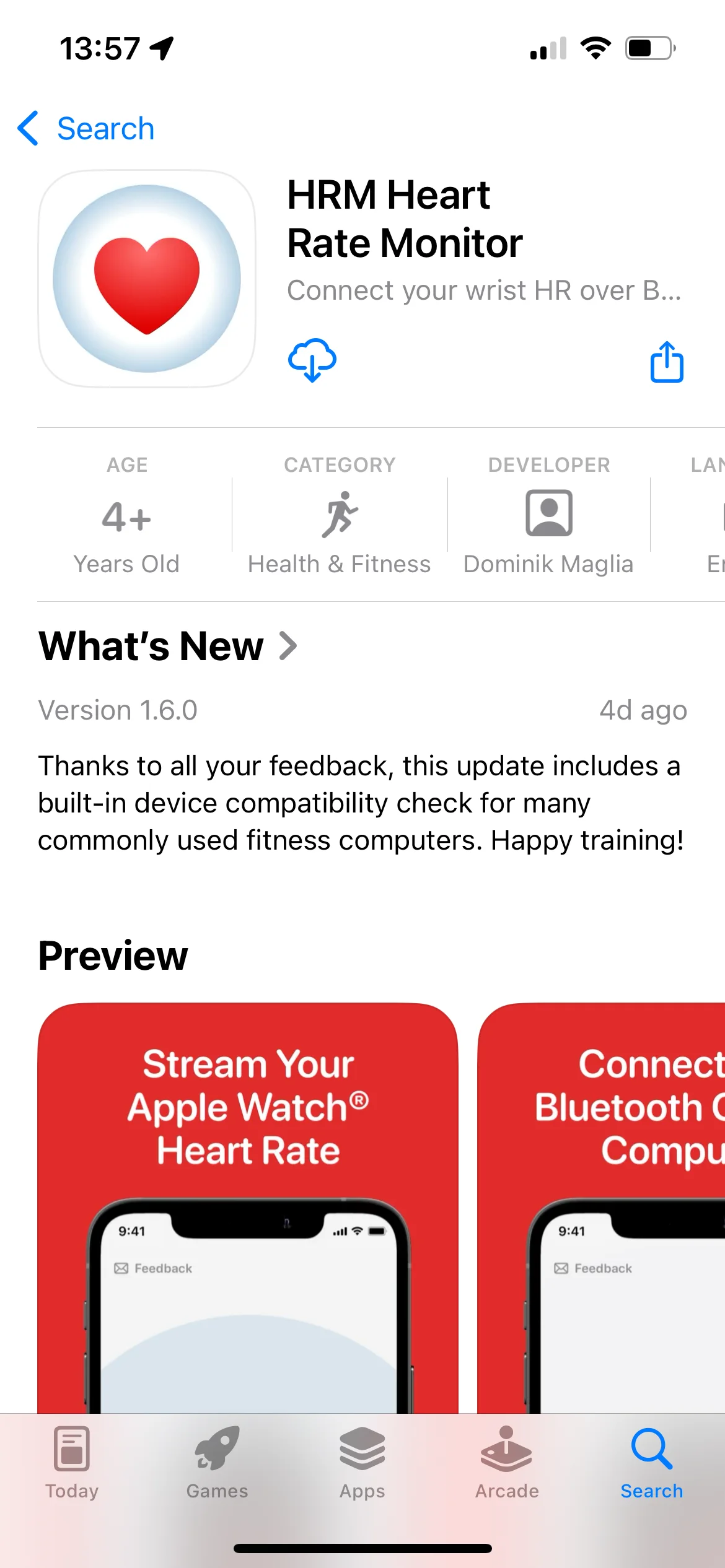
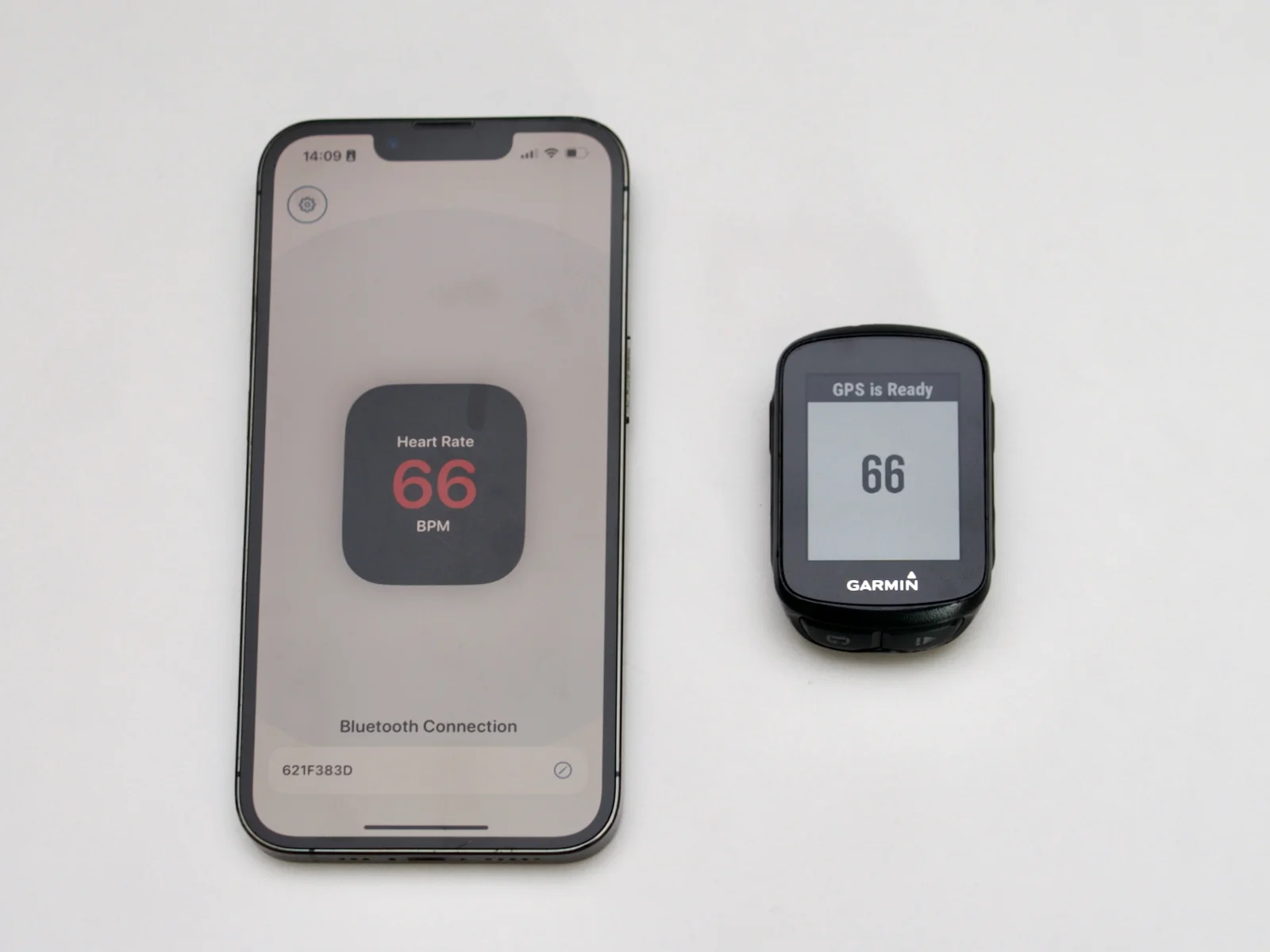
- 1 Download and open the HRM app on your iPhone. Accept the Bluetooth permission request when prompted. The app will show a pulsing blue circle, which means it's broadcasting.
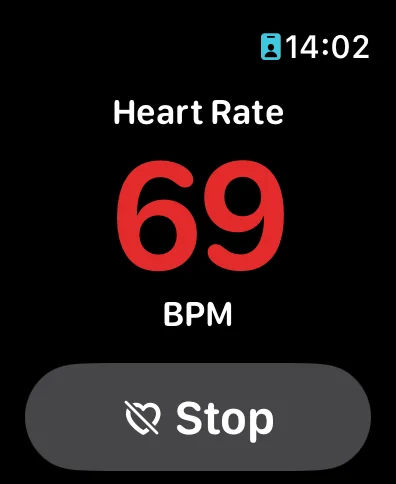
- 2 Open the HRM app on your Apple Watch. Accept the Apple Health permission request for heart rate data. Then press Start to begin measuring.
- 3 Power on your Garmin Edge. A pairing prompt for "HRM App" should appear automatically.
If no prompt appears: go toMain Menu → Settings → Sensors → Add Sensor. The HRM App should be discoverable.
Edge 540, 550, 840, 850, 1040, 1050 only: If the HRM App isn't discovered, first disable the phone connection:Main Menu → Connected Features → Phone → disable. Then add the sensor. Once paired, you can re-enable the phone connection.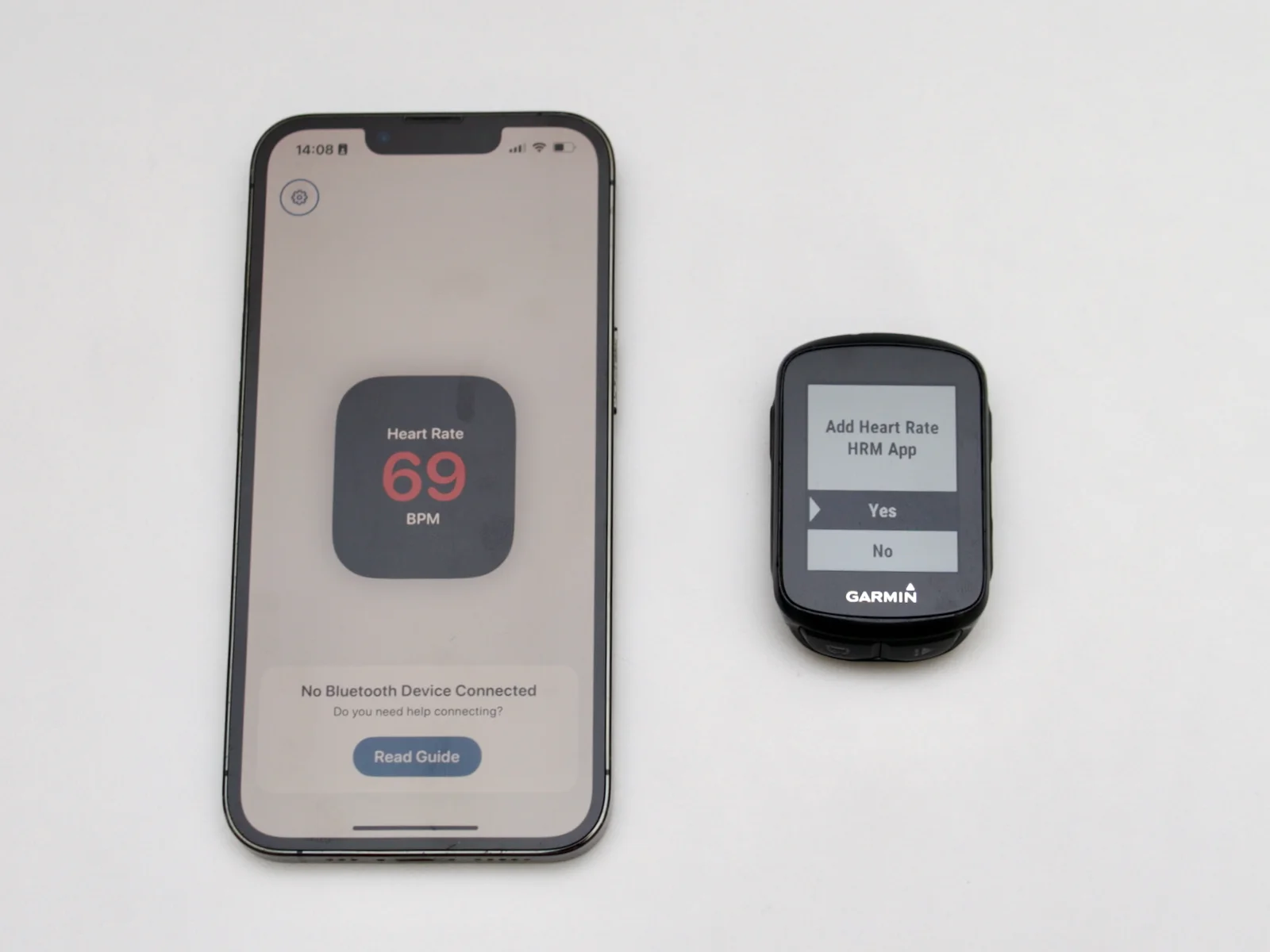
- 4 Confirm. Your current heart rate should now display on the Garmin Edge.
Setup for Every Ride
Once the HRM App is paired as a sensor, follow these steps before each ride. The key is the order of operations: sync first, then terminate Garmin Connect, then start HRM, then power on the Garmin.
- 1 Sync if needed. If you want your previous ride's data in Garmin Connect, do it now: open Garmin Connect, let your Edge sync, then close it.
- 2 Terminate Garmin Connect on your iPhone. Swipe it away completely. This is crucial — Garmin Connect will grab the BLE connection if it's running.
- 3 Open HRM on your iPhone and Apple Watch, then press Start on the Watch. Keep the iPhone app in the foreground until your Garmin connects.
- 4 Power on your Garmin Edge. The HRM App sensor should connect within a few seconds and heart rate will appear on your screen. If it doesn't connect, see the reconnect steps below.
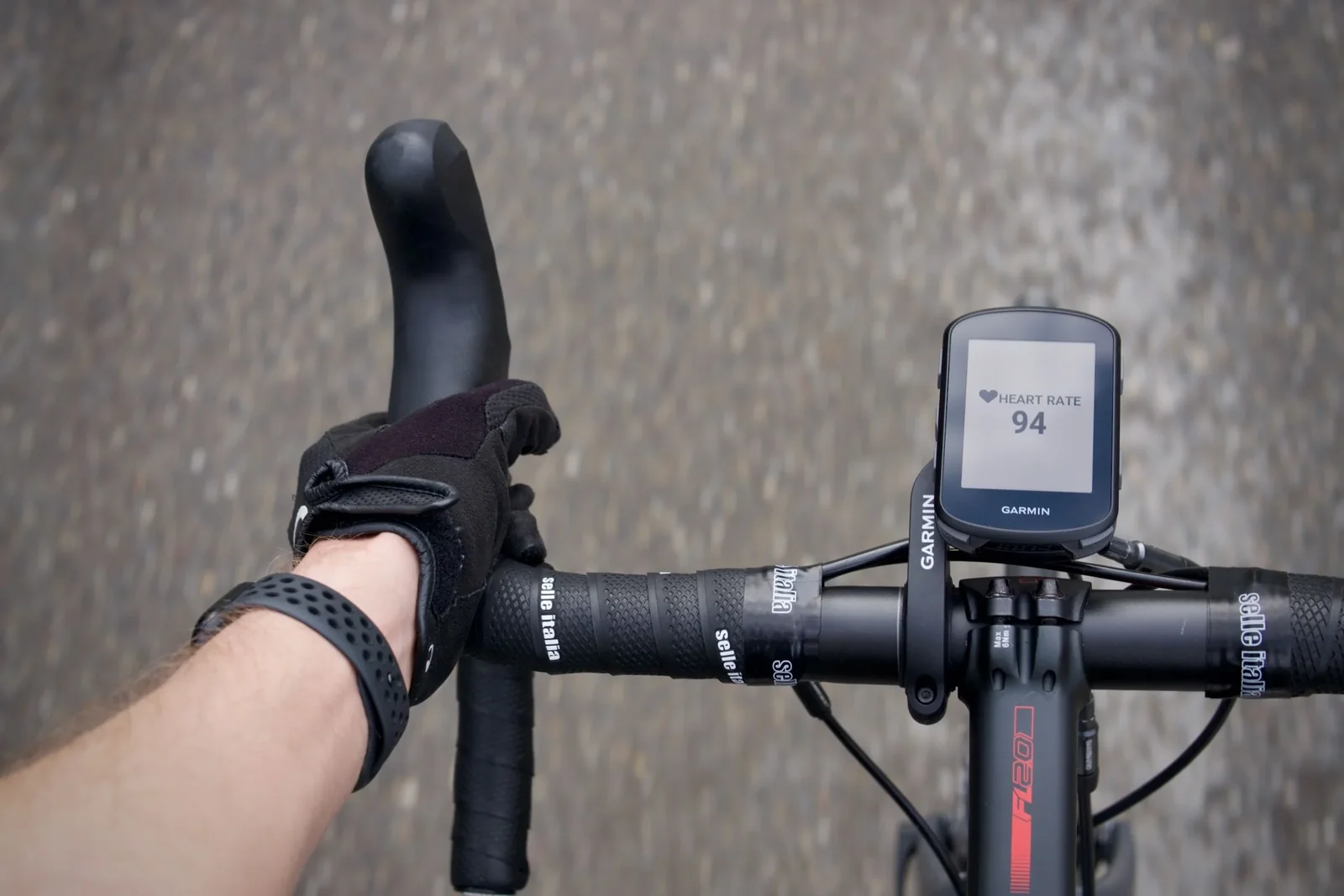
- 5 Ride. Stow your iPhone (lock screen or back pocket, it works either way). Your Apple Watch is now your live heart rate monitor.
- 6 After your ride: Press Stop on the Watch, then terminate the HRM app on your iPhone. Power off your Garmin Edge. Now open Garmin Connect as usual to sync your ride data.
If the Connection Drops
If the heart rate sensor disconnects mid-ride or doesn't connect on startup:
- 1 Make sure HRM is open and in the foreground on both iPhone and Apple Watch, then wait a few seconds. Bringing both apps to the foreground alone often triggers a reconnect.
- 2 On your Garmin:
Main Menu → Settings → Sensors → HRM App → toggle Enable or Connect. - 3 If the sensor toggle doesn't reconnect it, go to
Connected Features → Phone → Enable, wait ~5 seconds (HRM usually connects at this point rather than the phone), then disable the phone connection again. - 4 If none of the above work: remove the HRM App sensor from your Garmin entirely, then redo the Initial Setup above, with HRM broadcasting and the iPhone app in the foreground before the Edge searches.
Troubleshooting
HRM App Not Discovered by Garmin
HRM must be open and in the foreground on both iPhone and Watch when you power on the Garmin. If it's backgrounded on either device, the Garmin won't see it. Open both apps, confirm the blue circles are pulsing on the iPhone, then power cycle the Garmin.
Paired Once, Now Not Discovered
If your Edge found the HRM App before and no longer sees it under Add Sensor or Search All, the pairing on the Edge has gone stale. Remove it and pair fresh:
- 1 On the Edge, open
Settings → Sensorsand remove the existing heart rate sensor entirely. - 2 Open HRM on your iPhone and Apple Watch and press Start on the Watch so it is broadcasting. The iPhone app shows a pulsing blue circle.
- 3 With the iPhone app still in the foreground, go back to the Edge and search again:
Add Sensor → Heart Rate → Search. It shows up as HRM App.
HRM Shows a Pulsing Circle but No Connected Device
"No Bluetooth Device Connected" is the expected state until a receiver connects. The pulsing blue circle means the iPhone is broadcasting; the connected-device line only reports whether anything has picked that broadcast up yet, and it clears the moment your Edge connects. If it never clears, the problem is on the Edge side: start with the stale pairing steps above.
No Heart Rate Data ("--" on Watch or iPhone)
Check Apple Health and Background App Refresh permissions on your Apple Watch. Go to Settings (Watch) → Health → Apps → HRM and ensure heart rate access is granted. Also check Settings → General → Background App Refresh on your iPhone.
Connection Drops after a Few Minutes
Low Power Mode on either device restricts Bluetooth. Disable it on both iPhone and Apple Watch before riding.
If your iPhone offers Adaptive Power under Battery settings, turn that off as well. It is only there on iPhone 15 Pro and later.
Watch App Stopped Mid-Ride
The Watch app occasionally stops for no clear reason. If it does, restart the HRM app on your Watch, then bring the iPhone app back to the foreground. This usually gets everything going again within seconds.
FAQ
I followed every step exactly and it still won't pair. What else could it be?
If your iPhone is managed by your employer (MDM profile), your IT policy may restrict Bluetooth or BLE connections. This is invisible in the UI and can't be worked around from our side. To confirm, test with a personal iPhone. If pairing works there, the restriction is a device policy issue, not the app.
Watch the Setup
Prefer to follow along visually? This video walks through the exact setup process with a Garmin Edge 540 and 840.
Ready to Leave the Chest Strap at Home?
The Apple Watch on your wrist already measures heart rate accurately. The HRM app just gets that data to your Garmin Edge. Start with the 7-day free trial. No charge if you cancel before it ends.
after your trial ends
Less than a 3-pack of batteries.

Cancel before the trial ends and you won't be charged.